
can somebody rip Jades render for me with a black background please
3D Kombat Klassics
Pages: 1
can somebody rip Jades render for me with a black background please


About Me

0
I see you beat me to it. Well I made these so I'll post them anyway. A jpg with black BG and a gif so you can make any BG you want.


0
Glacius, can you PM me with how you cut those so clean? All the renders i cut seem to always take forever and sometimes dont look right. Any pointers would help alot. Thanks!
Wicked Klown has an awesome sig tutorial under Fan Art, but he forgot to put in how to cut renders out so clean:)
Wicked Klown has an awesome sig tutorial under Fan Art, but he forgot to put in how to cut renders out so clean:)
0
can someone please cut out her body except her head so i can make an aviator but show alittle hair u no what i mean... thanx n post the new pic here
0
WOW sry bout that lol

0
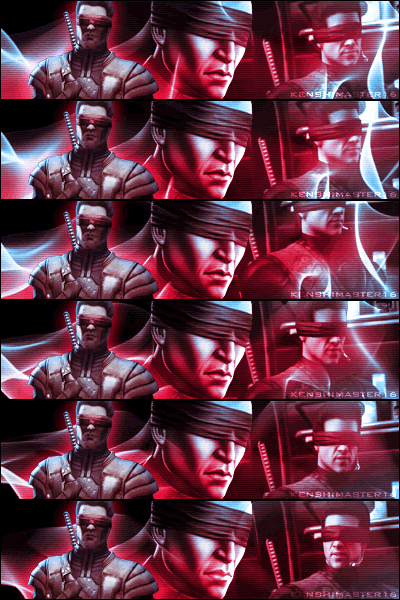
How do you make images like that cut perfectly? I wanted to do 1 but i just cant!
About Me
0
Yeah, I'd like to know how you did it. Haha.

About Me

0
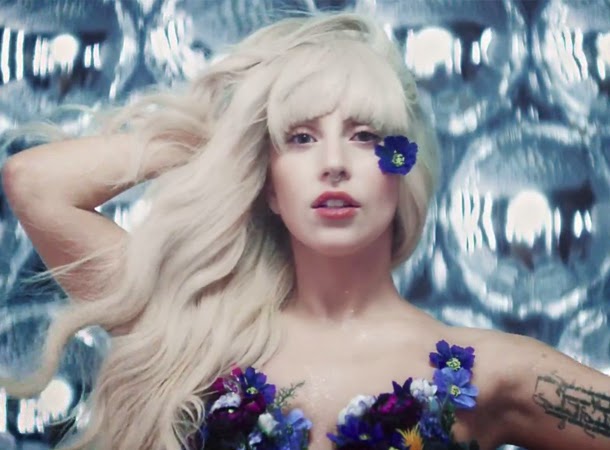
oooo! Can i use that picture for my fan site??? please? and how do u do that? What type of program do i need to make pics like that?
About Me
0
Yeah, we all want to know! LOL 
About Me
0
Wow! Is it really that impressive? I appreciate it. I sent kaiohx a PM about how to do it due to his request. Give me a few and I'll re-make it and post it. Just so you know I use PhotoImpact 5. I know most of you probably have PhotoShop but unfortunately I don't, so I don't know exactly what's different. I'm pretty sure PhotoImpact has more features but I'll explain what I did anyway in just a minute.
Edit: EdeniaNinja, yeah go ahead and use the pics.
Edit: EdeniaNinja, yeah go ahead and use the pics.

About Me
If you need a screen cap of something amazing to prove you're not full of shit, PM me
0
Using paths in Photoshop for those who are actually familiar with it, not just people who change colors in pics and say they made them, is quite easy. The best way to practice working with paths is work with a large document and type capital A B C. Then just practice using the pen tool to follow the lines and curves of the letters. Once you master that, removing backgrounds goes from being a chore, to a minor inconvenience. Oh and if thats too hard then you can always resort to the magnetic lasso. Also adjusting the tolerance for the paintbucket can also prove useful for those that are even too lazy to use the magnetic lasso
About Me
0
Its actually pretty simple BUT for anyone use doesnt know too much about it or Airbrush and Paintbrush are the only tools you use then heres a detailed description.
First off I used PhotoImpact 5. PhotoImpact has a selection tool, Im sure PhotoShop does too but in PhotoImpact there are different versions of it. Theres the standard Rectangle but there are other versions aswell. Hold Left-Click on the Selection box to bring up the Selection Sub Menu

Select the Lasso tool. You can either hold down LeftClick and draw around the image or PREFERABLY, click individual points. Anyway, just build the selection fence around the image.
Now youve got Jade selected. But we need to omit the areas between her right arm/hip and left arm/face. Theres a De-select feature that allows you to remove sections from your current selection. Its located at the top-left of the screen.

NOTE: You can use the plus sign to add to the selection just incase you accidentally cut off too much or if you missed something on the initial outline in the beginning.
Now, when youve got the selection the way you want it, turn off the De-select function by clicking the select icon (to the left of the plus sign)
You have some different way to do the rest but I suggest dragging your select off of the current window. PhotoImpact will make that selection its own picture.

Or if you want, you can drag the selection onto another existing picture, which is cool if youve got a background made and want to put this picture on top of it.
Right-Click on the picture and select merge. (This makes it part of the picture instead of a floating object)
*You can either color the background then Merge OR Merge and then fill in the background afterwards. Its actually easier to fill THEN merge.
Anyway, from there the picture looks like this when zoomed in. Really jagged.

Now if youre wanting this to be a jpg or bmp then we can go ahead and smooth out the edges. This can be done several ways. Since the background is black you could use the airbrush tool (Black with about a size 4 or 5) or a paintbrush with some transparency etc. But PhotoImpact has a Smudge tool. Its the same concept as using your finger to blend in a penciled drawing when doing shading.

Just use this tool with a relatively small stroke size. For this pic size 5 is plenty. Just draw along the harsh edges and youll get a nicely blended look.
Thats it.
Now if youre making a GIF then dont bother smudging or blending the edges. Leave them shape. Its important to make the background a very different color. Usually a real bright green (like greenscreen in movies) or pink. Just some color that is no where in your picture. Because youre going to make that color transparent. And if that color is in your picture, then those pixels will be clear aswell.
Now, you cant save a file with 16 million colors out as a GIF. It needs to be 256 I believe. So what you do to convert it is goto FORMAT/ DATA TYPE / OPTIMIZED INDEXED 256 COLOR

This creates a new image, just like the original only its been compressed down to 256 colors.
Now goto SaveAs and change Save Data Type to GIF.
Click Options which should bring up this menu

Click on Mask Options and youll get this menu

Now click Pick Color
Once youve done that, move your cursor up to the picture on the LEFT.
Hold CTRL ( The Hand should change to an Eyedropper)
Click the background and it should turn white (or black depending on whats selected on the BACKGROUND tab)
Anyway, once its turned white that means the background is now Transparent. Now just say OK and finish saving the file. Now youre GIF will have no background.
If anyone has easier ways to do this. Congrats and feel free to share. This is how I taught myself to do it. It only takes about 5 min to create both the Jade JPG and GIF once youve practiced.
First off I used PhotoImpact 5. PhotoImpact has a selection tool, Im sure PhotoShop does too but in PhotoImpact there are different versions of it. Theres the standard Rectangle but there are other versions aswell. Hold Left-Click on the Selection box to bring up the Selection Sub Menu

Select the Lasso tool. You can either hold down LeftClick and draw around the image or PREFERABLY, click individual points. Anyway, just build the selection fence around the image.
Now youve got Jade selected. But we need to omit the areas between her right arm/hip and left arm/face. Theres a De-select feature that allows you to remove sections from your current selection. Its located at the top-left of the screen.

NOTE: You can use the plus sign to add to the selection just incase you accidentally cut off too much or if you missed something on the initial outline in the beginning.
Now, when youve got the selection the way you want it, turn off the De-select function by clicking the select icon (to the left of the plus sign)
You have some different way to do the rest but I suggest dragging your select off of the current window. PhotoImpact will make that selection its own picture.

Or if you want, you can drag the selection onto another existing picture, which is cool if youve got a background made and want to put this picture on top of it.
Right-Click on the picture and select merge. (This makes it part of the picture instead of a floating object)
*You can either color the background then Merge OR Merge and then fill in the background afterwards. Its actually easier to fill THEN merge.
Anyway, from there the picture looks like this when zoomed in. Really jagged.

Now if youre wanting this to be a jpg or bmp then we can go ahead and smooth out the edges. This can be done several ways. Since the background is black you could use the airbrush tool (Black with about a size 4 or 5) or a paintbrush with some transparency etc. But PhotoImpact has a Smudge tool. Its the same concept as using your finger to blend in a penciled drawing when doing shading.

Just use this tool with a relatively small stroke size. For this pic size 5 is plenty. Just draw along the harsh edges and youll get a nicely blended look.
Thats it.
Now if youre making a GIF then dont bother smudging or blending the edges. Leave them shape. Its important to make the background a very different color. Usually a real bright green (like greenscreen in movies) or pink. Just some color that is no where in your picture. Because youre going to make that color transparent. And if that color is in your picture, then those pixels will be clear aswell.
Now, you cant save a file with 16 million colors out as a GIF. It needs to be 256 I believe. So what you do to convert it is goto FORMAT/ DATA TYPE / OPTIMIZED INDEXED 256 COLOR

This creates a new image, just like the original only its been compressed down to 256 colors.
Now goto SaveAs and change Save Data Type to GIF.
Click Options which should bring up this menu

Click on Mask Options and youll get this menu

Now click Pick Color
Once youve done that, move your cursor up to the picture on the LEFT.
Hold CTRL ( The Hand should change to an Eyedropper)
Click the background and it should turn white (or black depending on whats selected on the BACKGROUND tab)
Anyway, once its turned white that means the background is now Transparent. Now just say OK and finish saving the file. Now youre GIF will have no background.
If anyone has easier ways to do this. Congrats and feel free to share. This is how I taught myself to do it. It only takes about 5 min to create both the Jade JPG and GIF once youve practiced.
About Me
If you need a screen cap of something amazing to prove you're not full of shit, PM me
0
Oh and for those trying to follow along in photoshop. Using the lasso tool these are the commands to add and subtract to your selection
Alt-Subtracts
Shift-Adds
and once you have your selection made a simple control-j (new layer from copy) or a shift-control-j (new layer from cut) will extract your jade from the picture. You can then change the background to anything by just deleting it and painting over. If you want a transparent background then just simply right-click the background layer and delete layer. Now save as gif and bam, same results as the program mentioned above for those of us who have been caught by the photoshop wave
Alt-Subtracts
Shift-Adds
and once you have your selection made a simple control-j (new layer from copy) or a shift-control-j (new layer from cut) will extract your jade from the picture. You can then change the background to anything by just deleting it and painting over. If you want a transparent background then just simply right-click the background layer and delete layer. Now save as gif and bam, same results as the program mentioned above for those of us who have been caught by the photoshop wave
0
let me repeat that lol cut off her body so it just shows her head only like how my li mei aviator waz so i can make a jade aviator...
Pages: 1


© 1998-2025 Shadow Knight Media, LLC. All rights reserved. Mortal Kombat, the dragon logo and all character names are trademarks and copyright of Warner Bros. Entertainment Inc.